

The Slack app is available for Pro and Custom plans with access to the assistant.
@ mentions or to all messages in a specific channel that you configure.
Each message sent by the bot counts toward your assistant message usage.
Set up the Slack app
If your Slack Workspace Owner requires admin approval to install apps, ask them to approve the Mintlify Slack app before you add it.
- Navigate to the Integrations tab of the Assistant Configurations page in your dashboard.
- In the Slack card, click Connect. This opens Slack.
- Follow the Slack prompts to add the app to your workspace.
- Mention the bot to add it to a channel. The bot’s default name is
@mintlify-assistant.
Create an #ask-ai channel
To help your users quickly get answers to their questions, the bot can reply to every message in a channel that you choose. By default, the bot replies to every message in channels named #ask-ai. Create an #ask-ai channel and let your users know that the bot replies to messages in that channel. See Create a channel in the Slack Help Center for more information.
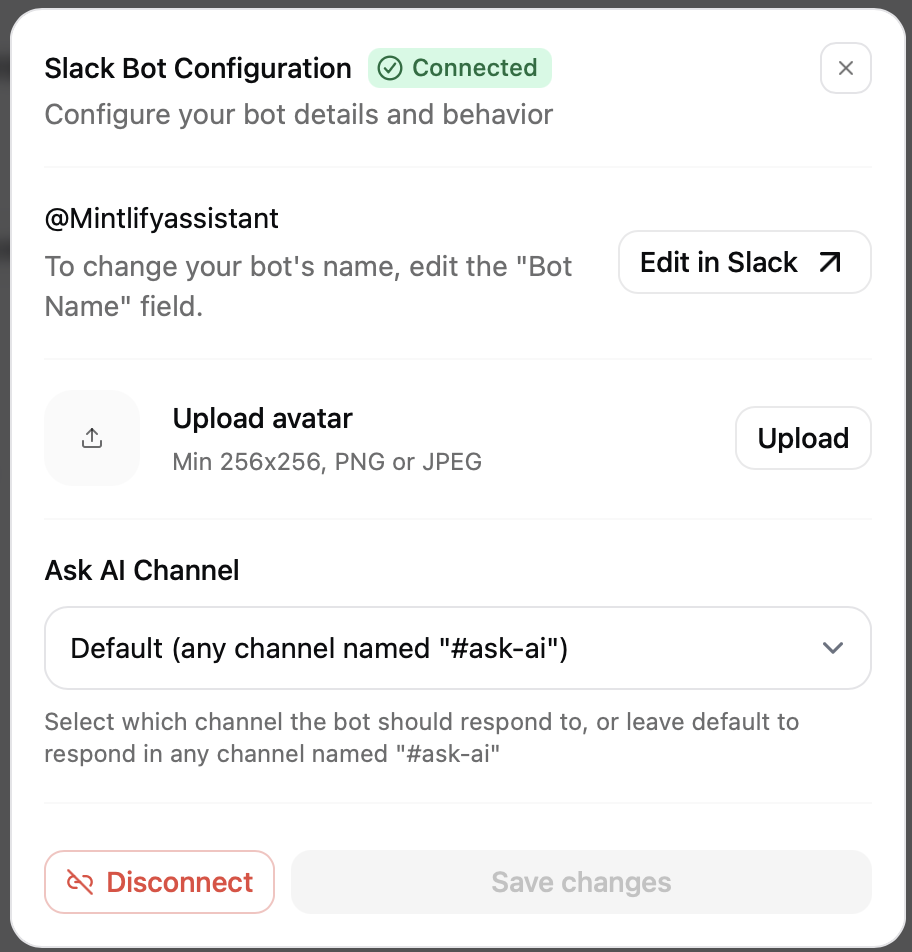
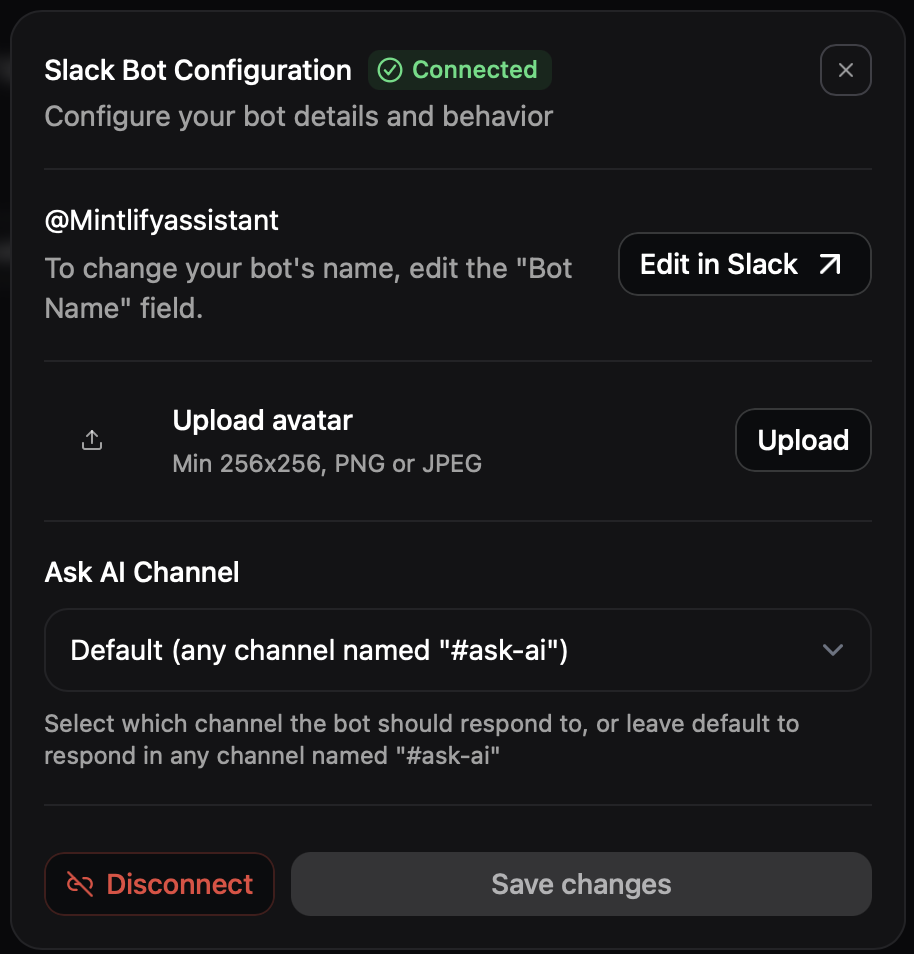
If you want the bot to reply to messages in a different channel, select a channel in the Slack bot configuration menu.
Manage the Slack app
After you add the app to your workspace, you can manage or remove the app from the Integrations tab. In the Slack bot configuration menu, customize the bot by changing its avatar or name, and choose which channel it automatically replies to all messages in.Remove the Slack app
You can remove the Slack Assistant installation from your workspace through the dashboard:- Navigate to the Integrations tab of the Assistant Configurations page in your dashboard.
- In the Slack card, click Configure to open the configuration menu.
- Click Remove to delete the installation.
- The Mintlify app is automatically uninstalled from your Slack workspace
- All installation data associated with your workspace is permanently deleted from Mintlify’s database
- The bot will no longer respond to messages in your workspace
- This action cannot be undone